
Regenerate Note
We're excited to introduce Regenerate Note, a new way to get a fresh note from a session you've already completed! If a note comes out too long, too short, or just doesn't capture the session the way you'd like, you can now have TheraPro take another pass at it, with a little direction from you (if you want to give it). Use Regenerate Note when you need to make big changes to your note, or when TheraPro just got it wrong the first time. Regenerate Note is live now and is included in our Plus, Pro, and Multi-Therapist plans.
A FRESH NOTE FROM THE SAME SESSION
When you regenerate a note, TheraPro goes back to the content of your session and drafts a fresh note in your selected note format. Your Note Personalizations and the available session and client context help guide the result, just as they do when your note is first created. If any of that context has changed (for example, if you've added a new personalization, or changed the Session modality from "In-person" to "Telehealth"), TheraPro will use the updated context when regenerating.
TheraPro also knows you want something different out of your note and will vary the tools it uses to give you a different result, while respecting your preferences and maintaining its high quality bar. And you can give TheraPro insructions on what to do differently, if there's something specific you're looking for.
HOW DO I DO IT?
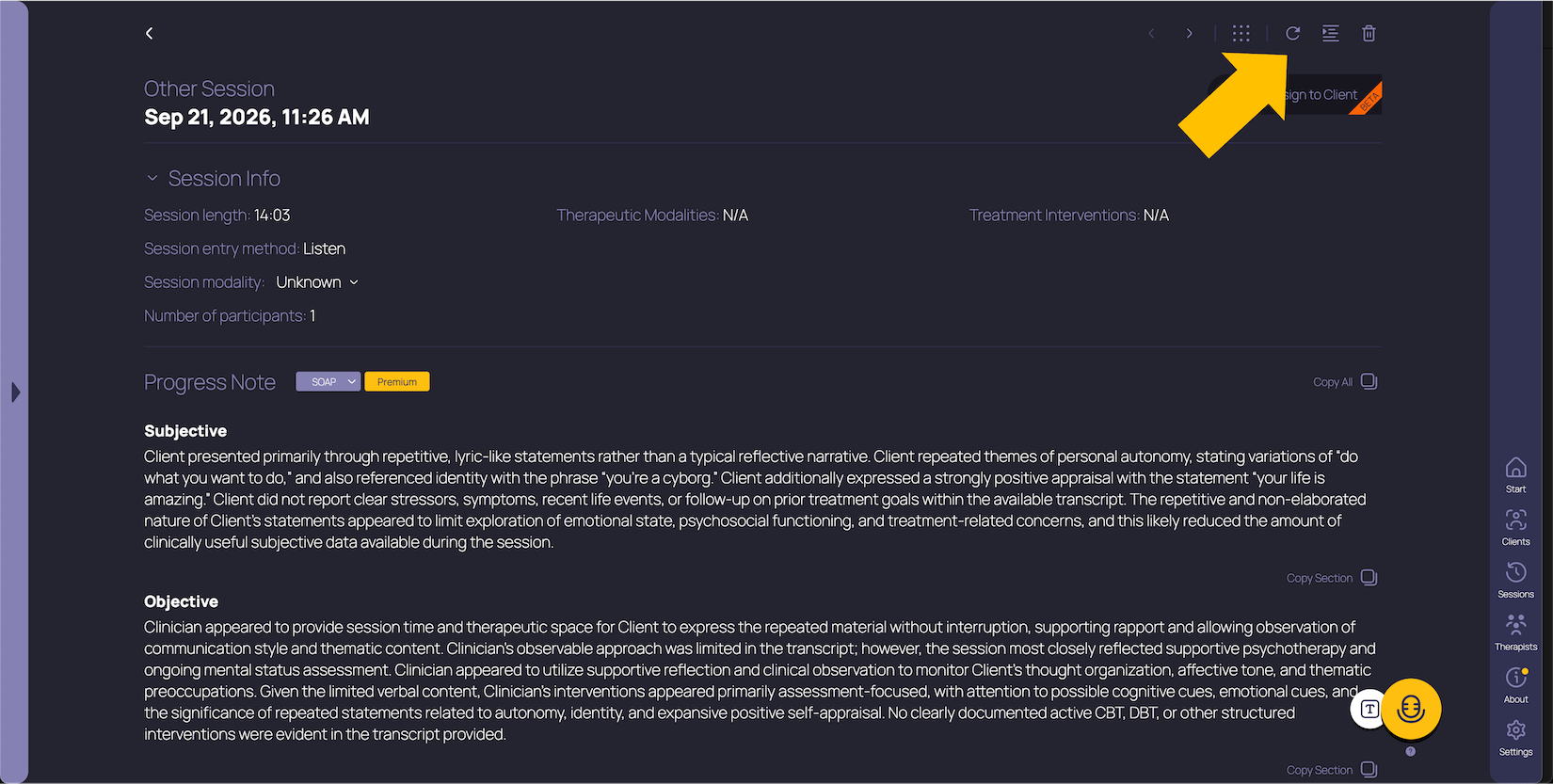
Regenerating a note is as simple as clicking a button in the top right of your session detail screen.
1. Open a completed session.
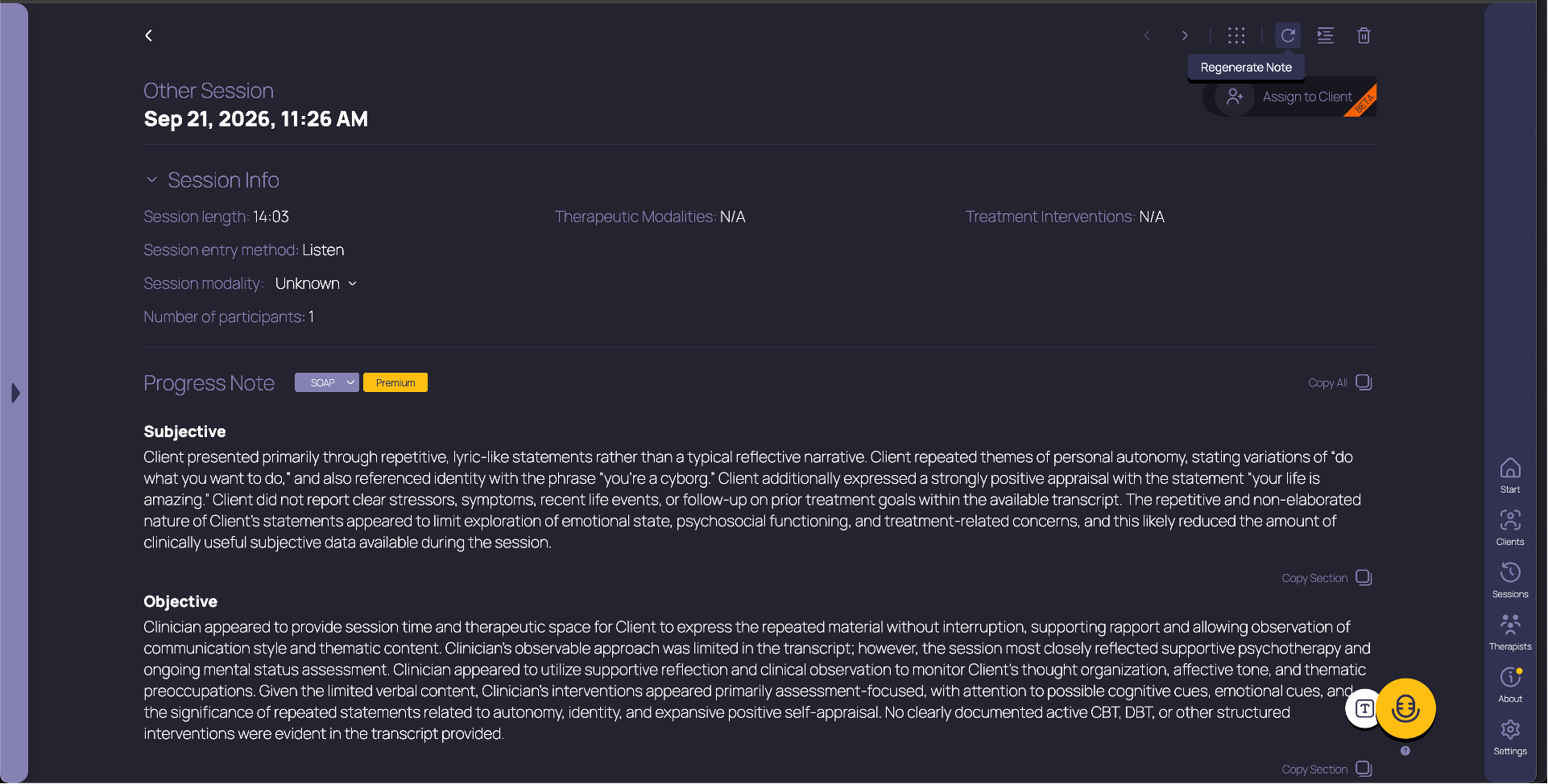
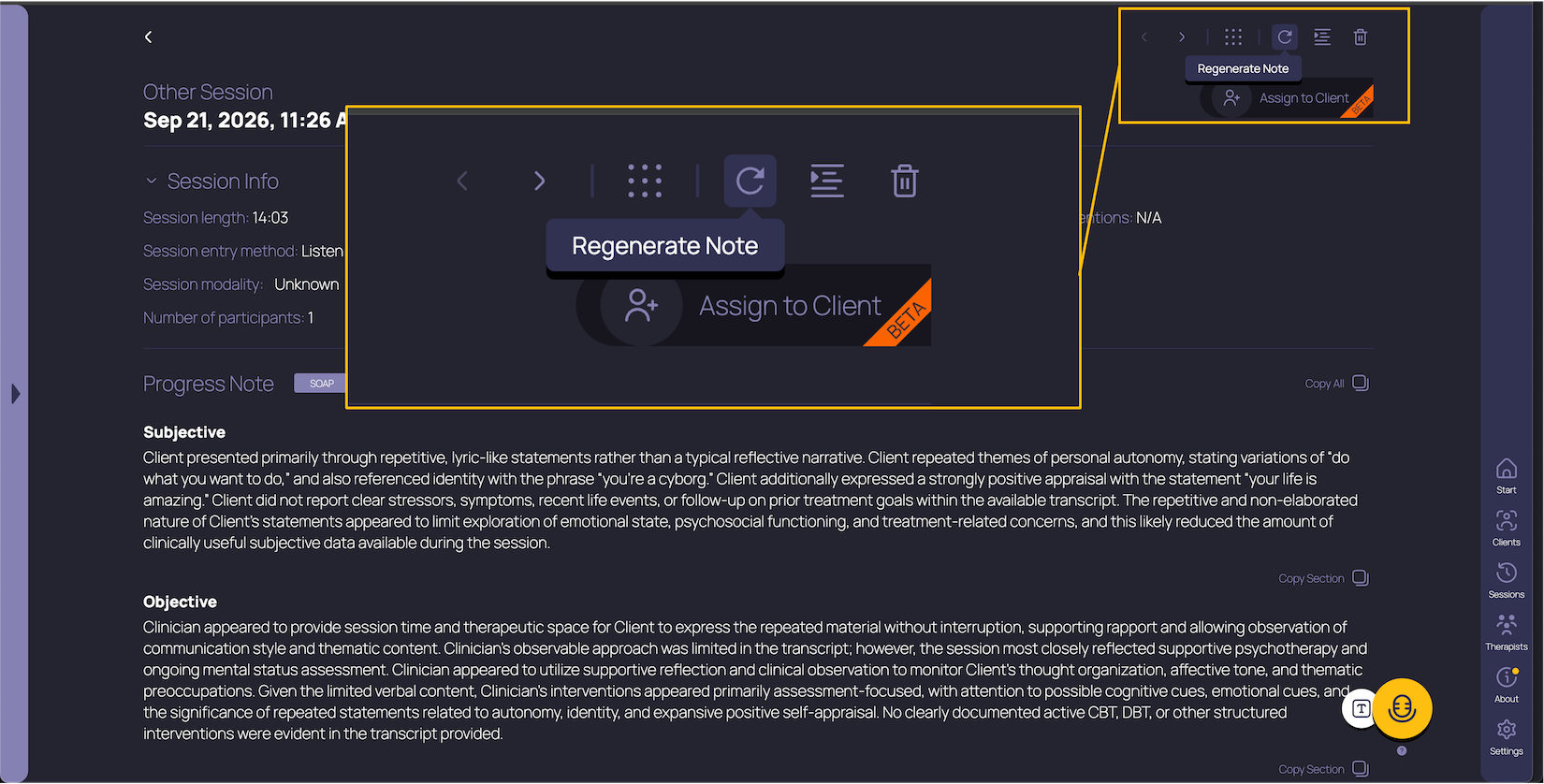
2. Click Regenerate Note in the top right corner.
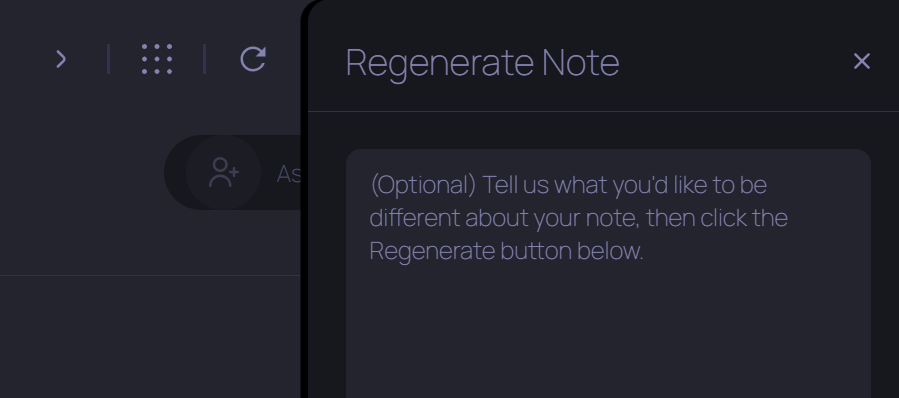
3. In the panel that opens, tell TheraPro what you'd like to be different, or leave the field blank if you'd just like another take.
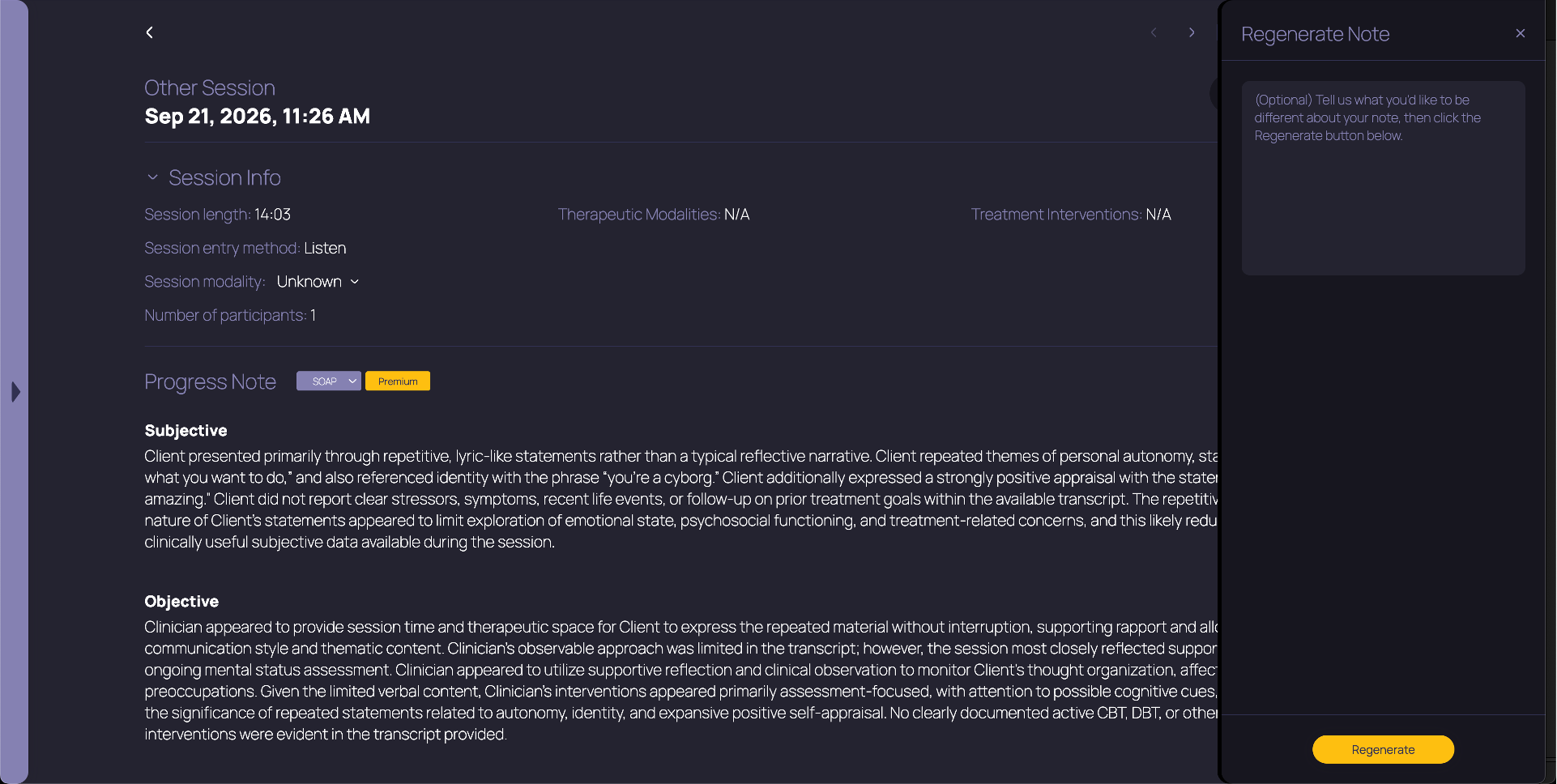
4. Click Regenerate. When it's ready, the new note replaces the one you're viewing.
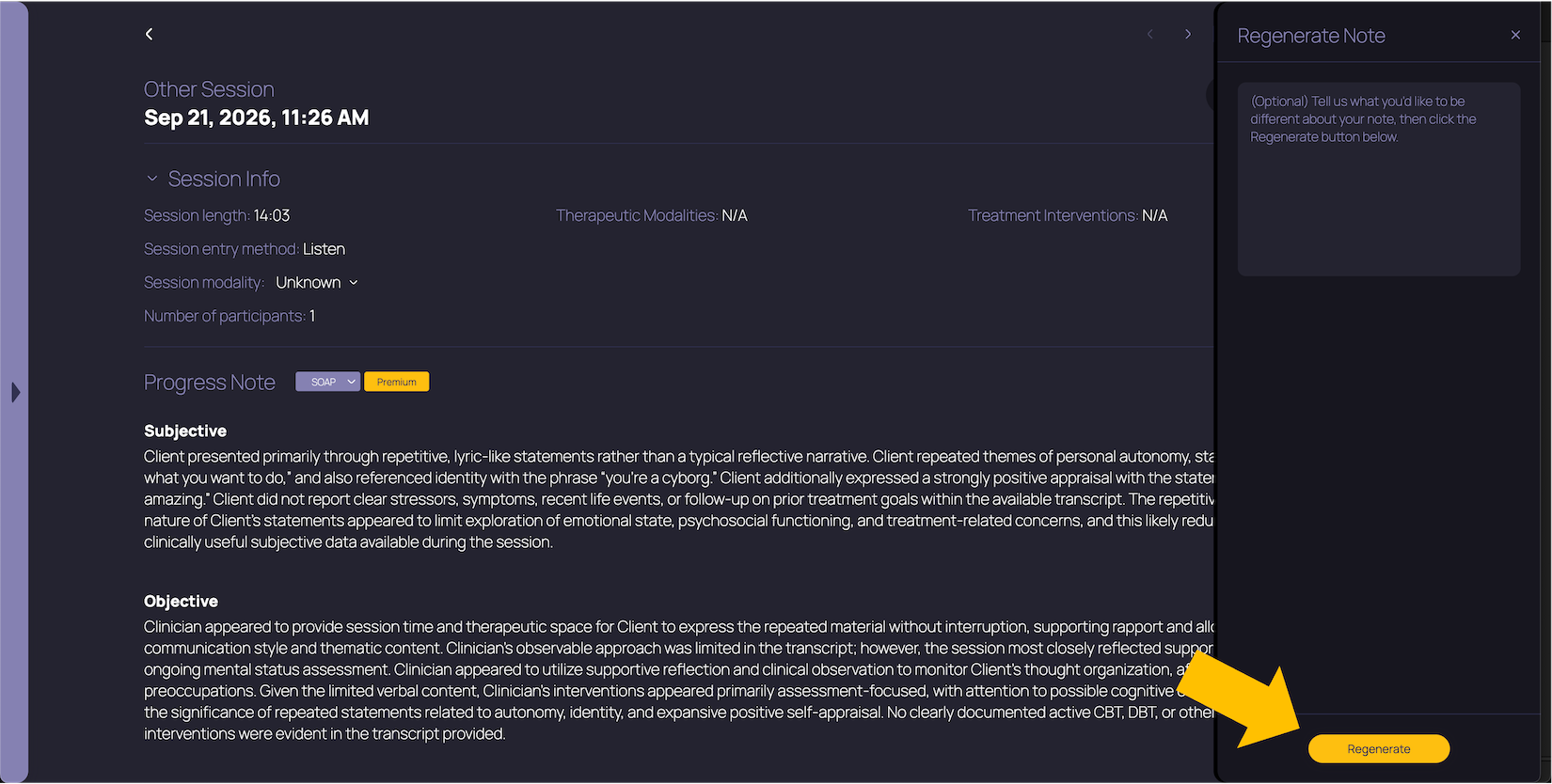
Your instructions to TheraPro about what to change can be as general or as detailed as you'd like. For example, you can tell TheraPro to look for a specific intervention that it missed, or give it relevant context (like the Client's affect) that it can't get on its own.
TheraPro can see the note you're currently looking at, so a request like “make this note about half as long” has a clear starting point. Any instructions you give apply to this regeneration only, and don't change your preferences for future notes.
WHEN DO I USE IT?
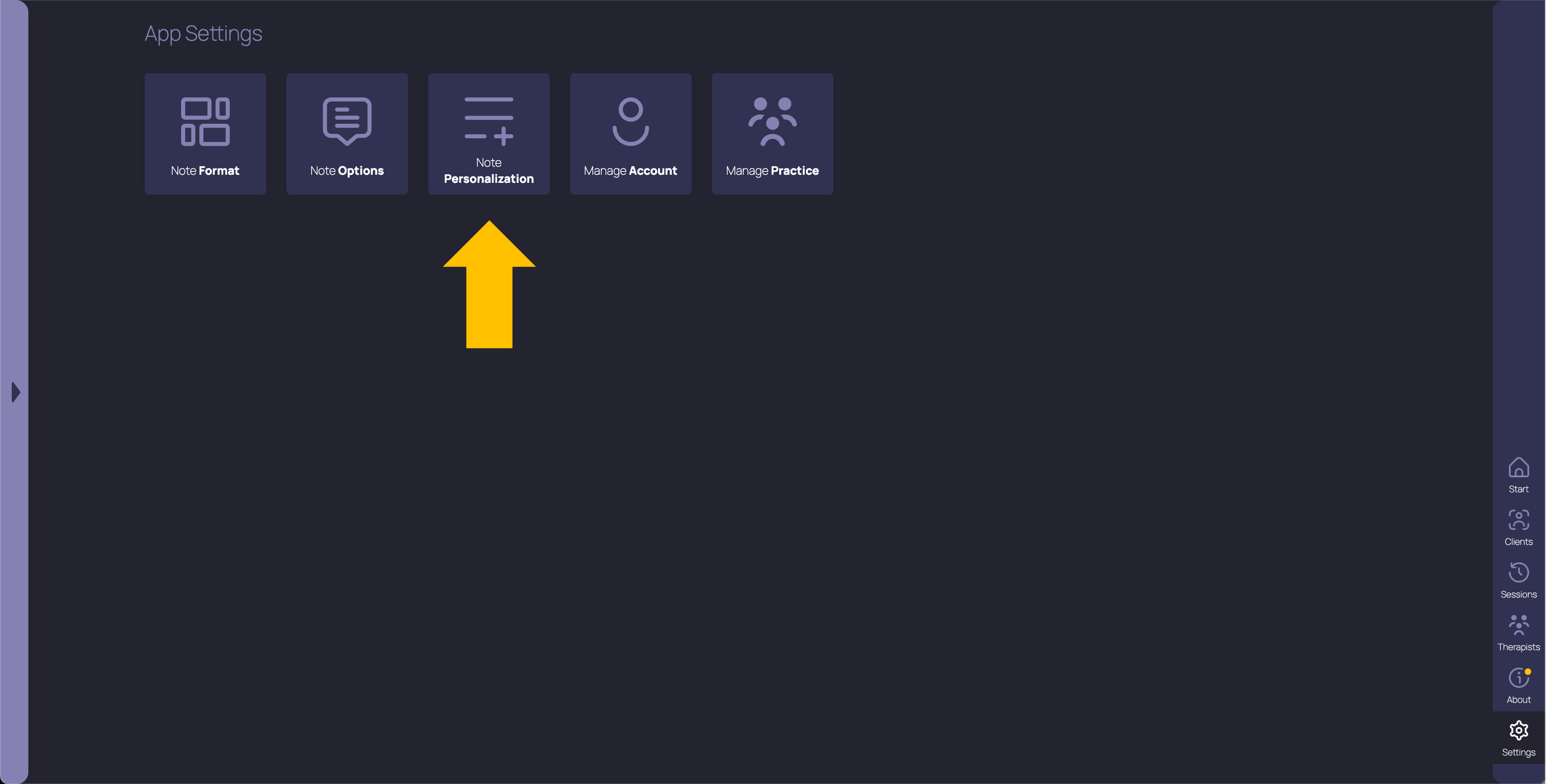
Use Regenerate Note when you want TheraPro to start over from scratch (yes, once in a while even TheraPro gets it wrong). If you only need to correct a word or change a sentence or two, editing the note directly will be quicker and easier. And if you find yourself asking for the same change every time, go to Settings → Note Personalization to make it a standing preference for future notes.
WHAT HAPPENS TO MY EDITS?
Regeneration replaces the current note, including any manual or Thera edits. If you've already changed the note, TheraPro asks you to confirm before proceeding. Save any wording you want to keep before regenerating.
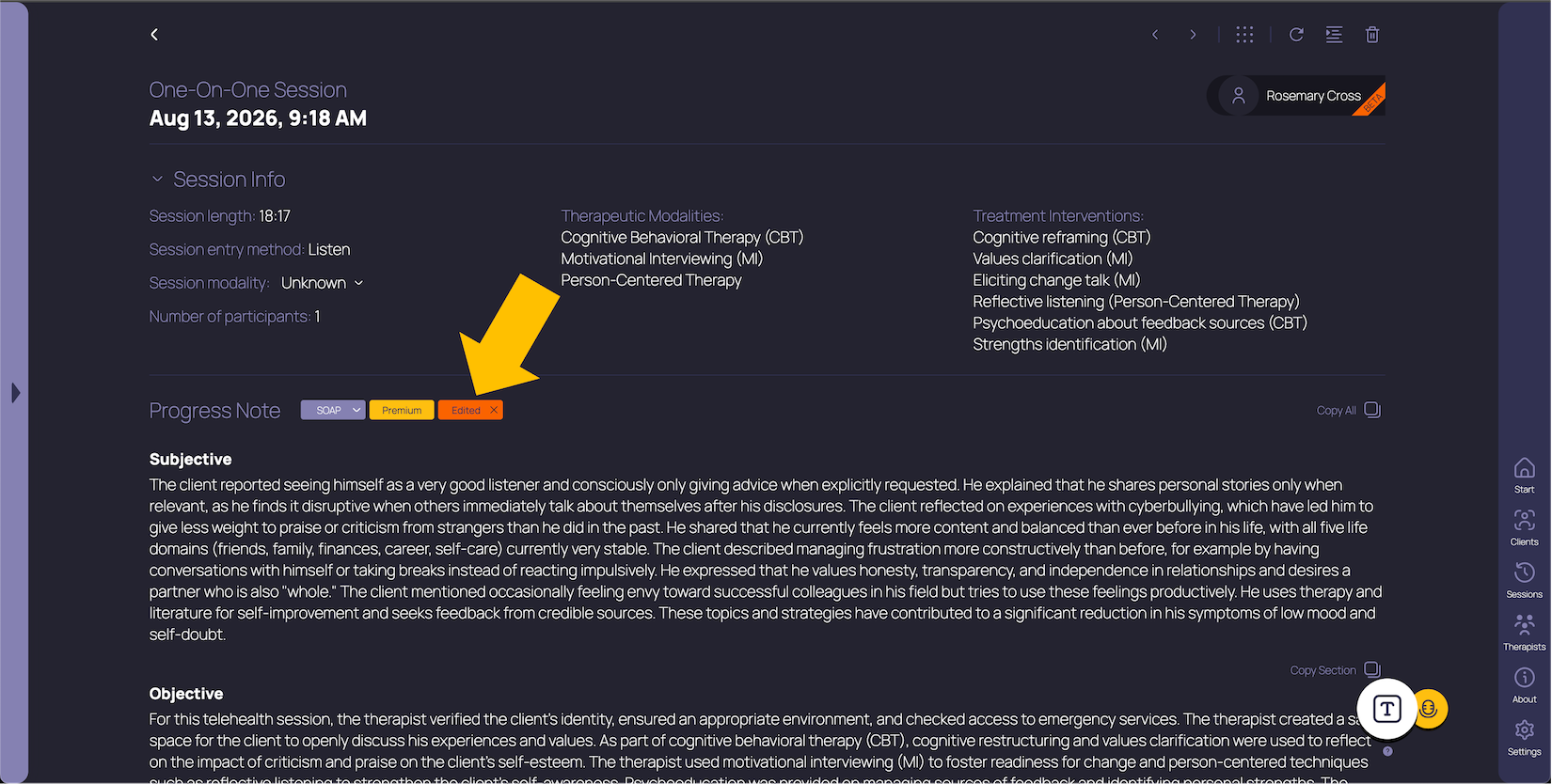
Your original generated note is preserved. If you prefer it, click the note's Edited badge to Revert to Original. This returns to the original note, rather than stepping back through previous edits or regenerated versions.
As always, review the new draft to make sure it accurately reflects your session before using it in your clinical record.
WHAT ARE THE LIMITS?
Pro and Multi-Therapist include 3 regenerations per session. Plus includes 1 regeneration per session. Regeneration isn't available in Free or Basic. You can compare TheraPro plans on our Features page.
The allowance belongs to the session, so switching formats or templates doesn't give you additional regenerations. Only successful regenerations count, and returning to the original note doesn't restore a used regeneration.
Regeneration works from existing session content, so asking for more detail gives TheraPro another opportunity to include relevant information that's already there. It can't recover parts of a session that were never captured.
We want TheraPro to give you better notes with less work, while keeping you in control of the result. Regenerate Note gives you one more way to get there. If you need help using this feature, you can reach us at help@therapro.ai, and as always, send your feedback or requests to hello@therapro.ai. Thank you for using TheraPro.
Get started with TheraPro AI by checking out our Plans and Pricing, finding out more about How TheraPro Works, or seeing our approach to Security and Privacy. You can Contact Our Team to talk with a real person if you have questions, or Sign Up to create a free account and start using TheraPro AI today!